Rescue a robot: your first mission
Question: Can a robot from 2006 learn a new trick without its original CD? Yes: we can use its existing firmware's command language. Today you will explain sequences, repetition, inputs and outputs while giving a hand-me-down NXT a useful job.
Teacher setup · no original CD required
- Check the brick. This lab is for LEGO Mindstorms NXT or NXT 2.0 running stock NXT firmware, not RCX, EV3, SPIKE or a brick with leJOS installed. Use fresh batteries or a charged approved battery. Do not change firmware for this lesson.
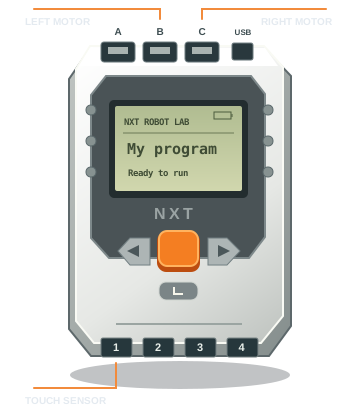
- Wire the model. Left drive motor → B; right drive motor → C; optional attachment → A; optional NXT touch sensor → input 1. First test with wheels off the table. If forward spins the robot, correct motor mounting or cables with power off. NXT cables are not ordinary phone cords.
- Open this page in desktop Chrome or Edge on the HTTPS website (or localhost). The simulator works without hardware APIs. Safari, Firefox, phones and tablets are not supported here for real-robot connections. School policies can block device access; ask IT to allow it.
- USB: attach a USB-A to USB-B data cable, turn on the brick, close other robot software, choose Connect USB, then select the NXT. An adapter may be needed on USB-C computers. Existing drivers can prevent WebUSB from claiming the interface; Windows may require a teacher/IT-managed WinUSB driver change. Do not have students replace drivers. If access fails, try the paired Bluetooth route.
- Bluetooth Classic: enable Bluetooth and visibility on the NXT; pair it in the computer's Bluetooth settings and confirm the passkey on both devices (often 1234). Then choose Connect Bluetooth serial and select the NXT serial service. Use desktop Chrome/Edge with Web Serial support for paired Classic serial devices. This is not Bluetooth Low Energy; the Web Bluetooth device picker cannot connect an NXT. Availability depends on OS pairing, browser version and school policy. Never choose an unrelated serial device.
- Verify: a successful connection displays a battery reading from the brick. Run a tone first, then one 90° wheel move at low power with wheels lifted. Check STOP before putting the robot on the floor. Clear the area; keep fingers away from gears.
Connection status: browser and protocol behavior can be tested without a brick, but this implementation still needs a classroom hardware trial on your specific NXT and school computers. Do that before scheduling a whole-class drive session.
Your original NXT kit: capability checklist
The classroom kit has touch, light, sound, and ultrasonic sensors. Blocks mode supports these sensors, three independently controlled motor outputs, decisions, nested repeat/while loops, variables and arithmetic. Choose a project from the Blocks project menu to inspect and change its actual logic.
| Goal | Included tools & project | What to verify on the build |
|---|---|---|
| Navigation & obstacle avoidance | Obstacle patrol, line following, maze decisions; ultrasonic distance and reflected light blocks. | Mount ultrasonic forward and light close to the floor. Measure black/white readings and set their midpoint as the threshold. Live serial latency means short moves; independent control requires compiled .rxe. |
| Manipulation & transport | Forward/reverse motor A/B/C blocks; forklift delivery and conveyor gate projects. | Build a geared attachment and test travel limits without a load. A conveyor or arm needs the physical parts; software cannot supply missing mechanisms. |
| Games & challenges | Touch target scoring, variables, math, loops, and a reactive maze project. | Press/release detection counts separate hits. Maze decisions are a starting algorithm, not a guarantee of solving every maze. Sports projects need an appropriate lightweight mechanical build. |
| Music, voice & custom audio | Melody and theremin projects; tone frequency/duration blocks; audio-file and microphone-to-RSO conversion; sound-file transfer/playback. | Sound sensor detects loudness, not words. Custom sound files must be sent to the brick before playing. Audio is mono, at most 8 seconds and 8 kHz. |
| Science & measurement | Encoder ruler, anemometer experiment, light/sound notebook, calculations, timestamped CSV export. | Calibrate wheel diameter, slip and cup rotor speed. Motor A is released during the anemometer experiment. Simulated and physical samples are labeled; relative light/sound percentages are not lux/dB. Standalone sample blocks show values on LCD; browser CSV requires a connection. |
| Remote control | Short-move direction buttons and W/A/S/D; desktop Bluetooth serial; two-button touch-remote starter. | A two-button remote needs a second touch sensor; its default input 2 replaces sound. Phones/tablets can use an optional classroom Wi-Fi relay through the connected desktop; direct phone-to-NXT Bluetooth is not supported. |
| Visual programming & independent execution | Drag blocks together, nest switches and loops, use math expressions, inspect/export generated NXC, transfer a compiled .rxe. | Programs run in the browser during live control. A compatible free NBC/NXC compiler is required for standalone .rxe builds; no compiler is bundled in this static website. NXT-G project imports are not supported. |
Color sorting: your original light sensor cannot identify colors like the NXT 2.0 color sensor. It can distinguish sufficiently different reflectance levels after calibration. Reliable sorting by actual color requires a compatible color sensor and a matching driver; that driver is not included in this version. Shape/size/touch-based sorting is possible with a suitable mechanical build.
Blocks studio: a six-session pathway
- Drive & measure: convert a sequence to blocks. Compare 90° and 360° motor moves; calculate wheel travel and save a CSV.
- Sense & decide: take sensor snapshots, then run obstacle patrol. Move the simulated robot near the wooden barriers; use manual sensor overrides to test both sides of each if/else. Read a real snapshot before running physical motors.
- Follow a line: record light readings over black tape and the floor. Use (black + white) / 2 as the threshold; adjust steering and move size. The simulator samples the drawn line under a forward sensor point. Its model has no collision physics.
- Build a machine: use the forklift or conveyor program with a motor A attachment. Add a touch end-stop condition and test a low-power, short movement. Gear reduction trades speed for torque.
- Make an instrument or game: tune the clap threshold or map distance to pitch. For the target game, explain why score = score + 1 and waiting for release are both necessary.
- Investigate & go independent: hand-spin the unpowered rotor or sample light and sound, plot a CSV, and identify uncertainty. Export and compile a tested short program, send its .rxe, disconnect, and start it on the brick.
Standalone setup · replace the CD workflow
A website can send live commands, but an unplugged NXT needs executable bytecode. This lab generates NXC source and transfers compiled .rxe files; those are different formats. The original CD software is not required. The downloadable Windows companion prepares portable tools automatically. A manual setup on other computers needs a compatible free NBC/NXC command-line compiler for the computer's current OS. Older downloads may not run on modern systems—verify compiler compatibility before planning the unplugged session. The generated code targets stock firmware 1.28+; check the version in the brick's settings and test against your installed compiler. Do not flash firmware as part of a student lesson.
- Start with a tone-only program, then a short motor move with wheels lifted. Export
myrobot.nxc. - Compile with the free NBC/NXC command-line tool:
nbc myrobot.nxc -O=myrobot.rxe -v=128. A .nxc file renamed to .rxe is not executable. - Optional one-button compilation: on Windows x64, download and extract the compiler companion from the app’s Windows compiler setup panel and run Start-NXT-Compiler.cmd. It obtains portable Node.js and NBC/NXC with checksum verification and compiles a tone test plus every starter before reporting ready. It requires internet on first launch. No repository clone is needed. For a manual setup on other computers, install a compatible
nbcand runnode scripts/nxt-compiler-bridge.mjsfrom this repository. If it is not on the executable search path, setNXT_NBCto its full path. Press Compile .rxe locally; the browser may ask permission to contact the local computer. This sends the program only to the teacher's localhost companion. The companion accepts this lab's structured program, validates it, and calls the compiler with a 15-second limit. It does not connect to the robot or modify firmware. - Connect the NXT. Open Brick files, choose the new .rxe and Send. If its name is already on the brick, choose a new name; this tool does not delete or overwrite existing files.
- Press Disconnect, remove the cable, then use the brick's My Files → Software files → program → Run menu. A Bluetooth link is not required once the program is stored.
- Browser STOP also stops a running stored program while connected. After disconnecting, use the brick's orange/back controls and power switch. The generated program has a 2-minute overall watchdog and a 10-second motor deadline; test these on hardware before student use. This remains a classroom tool, not a certified safety controller.
Verification: software tests cover the interpreter, protocol requests and mocked file transfers. The local companion reports a missing compiler explicitly. The companion verifies real compilation on the computer where it runs. USB transfer and unplugged execution still require a physical NXT trial; a successful compile is not a hardware test.
Optional phone / tablet remote
Run node scripts/nxt-phone-remote.mjs --lan on the teacher computer, on a trusted classroom Wi-Fi network. It prints two private session links. In the desktop lab's Remote control panel, paste the teacher browser relay link (127.0.0.1) and press Connect phone relay. Open the printed phone link on a phone connected to the same Wi-Fi. Keep the desktop tab active, connect the NXT by USB or Bluetooth serial, and enable its readiness check. Phone taps send 45° movements; STOP cancels queued movement in the desktop interpreter. The relay does not install a robot driver, connect a phone's Bluetooth directly, or execute a downloaded program.
The optional relay uses local HTTP with a random session token. Use it only on a trusted classroom network and share the phone link only with the active driving team. School Wi-Fi isolation, firewall rules or browser local-network permissions may block it. Close the relay when the session ends. Disconnected, hidden or busy teacher browsers ignore drive commands; keep an adult at the brick because a lost connection can prevent a stop arriving.
A 50-minute lesson
- 0–8 min · Be the robot. One partner gives three exact instructions; the other follows literally. Identify input (information), program (instructions), output (action).
- 8–18 min · Sequence. Run “Hello, robot” in the simulator. Predict what changes if the tone comes first. Move steps with the arrow buttons, then test. Explain why order matters.
- 18–30 min · Repeat and calibrate. Load “Square experiment.” A 193° wheel spin approximates a 90° robot turn for the model geometry. Repeat the pair of steps four times. On the real build, measure the turn, adjust motor degrees and record three trials. Use wheel circumference = π × wheel diameter to predict forward distance.
- 30–40 min · Sense, decide, act. Load “Touch to go.” Run, then toggle the simulated touch input. With the real robot, press the sensor on port 1. The program waits for input, with a ten-second timeout; it does not automatically avoid collisions. Why is waiting for an input different from waiting one second?
- 40–50 min · Design a delivery. Create a route to a taped destination, add an arrival tone, save the project, and let a partner reproduce it. Submit your saved file, prediction, measured results and one revision.
What the blocks teach
- Sequence
- The ordered list runs from top to bottom; the highlighted row is the current instruction.
- Loop
- Repeat runs the whole sequence 1–8 times. Change one step rather than copying it four times.
- Input and condition
- Wait for touch repeatedly reads a switch until pressed, or stops with a timeout. It works only with the NXT touch sensor on input 1.
- Output and feedback
- Motor encoders report rotation. The browser checks motor status before continuing. Power changes speed; motor degrees change travel.
- Abstraction and protocol
- “Forward 180°” becomes two SetOutputState messages. Port B is encoded as 1; port C as 2. The command inspector reveals those messages.
Safety, limits & troubleshooting
STOP, Escape, hiding the tab or leaving the window asks the brick to brake all three motors. A broken connection can prevent that message arriving. Each move has a finite limit of at most two motor rotations; this is not a hardware emergency stop, and a stalled motor may stay powered until the teacher turns the brick off. Keep an adult within reach of the brick's power control. Do not use this with heavy, fast, elevated or hazardous mechanisms.
Real-robot mode requires the readiness checkbox every connection. If a command times out, reconnect and inspect the robot before trying again. A touch timeout usually means input 1 is unplugged or the wrong sensor is attached. Tone blocks play in the browser simulator and on a connected brick. Sound-file blocks refer to files on the brick; use the Sounds panel to prepare a recording or audio file as .rso, then send it under Brick files.
What this replaces: an introductory sequence editor and live control environment. Projects are saved as this lab's JSON files. They are not NXT-G files or compiled .rxe programs; they cannot run independently after disconnecting. Sensor logic, variables, arithmetic, measurement logs, motor attachments, tones and custom sounds are available in Blocks mode. On-brick execution uses exported NXC compiled to .rxe; the optional local companion connects an installed free compiler to the website. The website does not bundle a compiler or install firmware.
Adapt & assess
Explorer: arrange three steps and explain a prediction aloud. Builder: use repetition and a touch input; measure two trials. Engineer: derive turn calibration from wheel diameter and track width, explain Bluetooth framing, and compare model error with measured encoder travel. Success means the student can explain their sequence, demonstrate STOP, interpret an input, and use evidence to revise a program.
Documentation & sources
- LEGO NXT Direct Commands specification (LEGO, 2006; mirrored PDF) — message fields, motor limits and sensor replies.
- Chrome: serial over Bluetooth Classic and WebUSB device access — browser connection requirements.
- NXT-Python project — independent protocol and USB transport reference.
- NXT background and kit history.
Connection notes researched November 11, 2026. LEGO and MINDSTORMS are trademarks of the LEGO Group; this classroom tool is independent.