The floor or player is missing a CollisionShape3D, or the shapes do not touch.
Keys do nothing
Check Input Map spelling. Action names must exactly match the strings in the script.
Player passes through floor
Make sure the floor's collision shape is a child of StaticBody3D.
Red error appears
Read the first red line in the Debugger. It usually points closest to the cause.
Game Design & Development · 50–70 minutes · Grades 9–12
Think in scenes. Build with nodes.
Godot is a free, open-source 3D game engine. In this lesson, you will learn the shared language behind modern engines—worlds, transforms, systems, assets, and play tests—then build a tiny room with a player you can move.
Finish line: a transferable engine mental model, plus a lit 3D room, a player with collisions, and four-direction movement.
main.tscn
3DMainNode3D
Main: the root node that holds the whole room together.
Big ideaA Godot scene is a reusable tree of nodes, and each node has one clear job.
PredictIf a player has visuals but no collision shape, it may look solid while passing through the floor.
TestRun one change at a time and name the node, signal, or script responsible for the result.
Why it mattersThis mental model transfers to other engines, tools, and collaborative projects.
The engine lens
Every 3D engine asks the same five questions.
Names change between Godot, Unity, Unreal, Blender, and other tools. The underlying job stays recognizable. Click a question, then find its Godot name.
WORLD→OBJECT→BEHAVIOR
THE SHARED IDEA
A scene graph is the world’s family tree.
Objects live in a hierarchy. Parents carry children with them, so moving a player can move its mesh, camera, and collision shape together.
In GodotNode3D → Scene → Instance
Input→Update→Physics→Render→Audio + UI↺
Transfer test: if you can point to the scene tree, transform, component/resource, and play-test evidence in a new tool, you are not starting from zero.
00
Scene tree
Explore the scene hierarchy
This is containment, not biological ancestry. Each step is a nesting level. Select Player to highlight its parent and descendants; the Level branch remains separate.
World · Node3D: The scene root contains the player and the level.
Player · CharacterBody3D: Moving this node carries its spatial children along with it.
Mesh · MeshInstance3D: The visible player model.
Collision · CollisionShape3D: The shape used by the player body for collision.
Camera · Camera3D: A child camera follows the player transform. Camera behavior can also be scripted.
Level · Node3D: A sibling of Player, so it is not moved by changing Player’s transform.
Floor · StaticBody3D: A stationary collision body.
Floor shape · CollisionShape3D: Defines the floor collider.
Try it: Predict which nodes move when Player moves, then recreate the hierarchy in Godot and test your prediction. A shared parent does not make siblings move together when only one sibling changes.
01
Launch
Before you build
Create a clean Godot 4 project.
1
Open Godot
Launch the editor, then choose Create.
2
Name it
Use First3DRoom and choose an easy-to-find folder.
3
Choose Compatibility
It works on more classroom computers and is required for a future web export.
CheckpointYou should see an empty editor with Scene on the left, a 3D viewport in the center, Inspector on the right, and FileSystem at the bottom.
02
Editor
Four places, four jobs
Read the editor like a workspace.
Scene dockA family tree of every node in the current scene. Parent-child relationships matter.
Try it: click each editor area above. Then say its job without looking.
03
Mental model
Godot's grammar
Nodes are parts. Scenes are reusable assemblies.
●
Node
One object with one main job: camera, light, sound, shape, timer, or script.
Camera3D
⌘
Scene
A saved tree of nodes. A player, level, menu, or enemy can each be a scene.
player.tscn
↗
Signal
A message a node emits when something happens. Other nodes can listen and react.
button.pressed
{ }
Script
Instructions attached to a node. Godot's beginner-friendly language is GDScript.
player.gd
LEGO is close—but not perfect.
A node is like one specialized brick. A scene is a saved model. A script tells a brick how to act. A signal lets one part announce, “Something happened!”
04
Toolbox
The pattern behind every object
There is no "Car" node. It's a stack of jobs.
Godot has no Car3D or Building3D class. Every solid-looking thing — a building, a car, a coin — is a small parent-child stack: a body node tells physics how to treat it, a MeshInstance3D gives it a visible shape, and a CollisionShape3D gives that shape a physical boundary. Swap the body type and the same two-node shape+collision pair becomes a wall, a wrecking ball, or a trigger zone. Pick an object to see its stack.
building.tscn
Click a node above to see its job.
The most common building blocks
○
Empty container
Node3D
Groups and positions other nodes. Draws nothing, has no physics — a plain parent to move a whole group at once.
◫
Give it a shape
MeshInstance3D
Renders a mesh: a primitive like BoxMesh/SphereMesh, or an imported model. Purely visual — no physics of its own.
▤
Fixed world geometry
StaticBody3D
Never moves during play: floors, walls, buildings. Other bodies collide with it, but it ignores gravity and pushes.
◍
Fully simulated
RigidBody3D
Real physics: falls, bounces, gets knocked around by other bodies. Use for crates, balls, debris — anything physics should drive.
◆
Moved by code
CharacterBody3D
Collides like a solid body, but you move it yourself in a script with move_and_slide(). Players and enemies.
◎
Detects, doesn't collide
Area3D
Bodies pass straight through it. Emits signals like body_entered — pickups, damage zones, level triggers.
⬡
Give it a boundary
CollisionShape3D
Pairs with a body or Area3D above it. Needs a Shape resource (Box, Sphere, Capsule…) in the Inspector, or the body has no physical presence.
☀
Light like the sun
DirectionalLight3D
Parallel rays from one direction, no matter where it sits. One per outdoor scene is usually enough.
✺
Light like a bulb
OmniLight3D
Radiates outward from a point in every direction. Lamps, torches, glowing pickups.
◣
Light in a cone
SpotLight3D
A directional cone, like a flashlight or a car headlight. Aim it with rotation.
◉
Frame the shot
Camera3D
The viewpoint rendered to the game window. Only one Camera3D can be Current at a time.
♪
Give it sound
AudioStreamPlayer3D
Positional audio — volume fades and pans with distance from the listener, unlike a flat AudioStreamPlayer.
Textures and materials are not nodes.
A Texture is an image. A Material is a resource describing how a surface reacts to light, and it holds a texture. You assign a Material to a MeshInstance3D's surface in the Inspector — there is no separate node to add for color or texture.
See it in the real editor
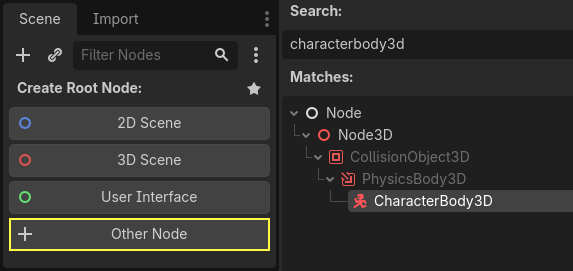
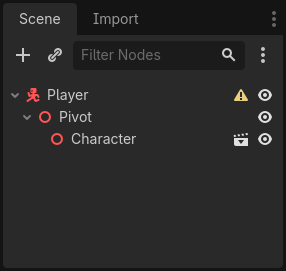
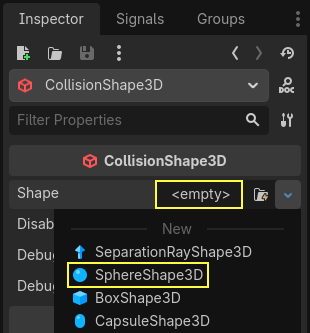
The node dialog shows each class’s ancestry. Search any node type and Godot shows its real parent chain. CharacterBody3D descends from PhysicsBody3D, which descends from CollisionObject3D, which descends from Node3D. Each child class inherits its parent’s capabilities and adds more specialized behavior.Godot nags you when a piece is missing. That yellow triangle means this body has no collision shape assigned yet — it looks solid, but nothing can touch it.The fix. Select the CollisionShape3D, then assign a Shape resource in the Inspector — Sphere, Box, or Capsule. The warning disappears once it has one.
Choose 3D Scene. Rename the root Main, then save it as main.tscn.
Node3D
Add a floor
Add StaticBody3D. Give it a MeshInstance3D with a BoxMesh and a CollisionShape3D with a BoxShape3D. Scale it wide and flat.
Doesn't move
Add the player
Add CharacterBody3D, rename it Player, then add a MeshInstance3D and CollisionShape3D beneath it. Move Player above the floor.
Moves by code
Light the room
Add DirectionalLight3D. Rotate it until you can see shadows and shape.
Makes form visible
Frame the action
Add Camera3D. Move it back and up, angle it toward the room, and make sure Current is enabled.
What the player sees
Nothing appears when you press Play?
Confirm Camera3D is marked Current.
Check that the camera points toward the floor and player.
Make sure your MeshInstance3D nodes have an actual mesh assigned.
When asked for a main scene, choose main.tscn.
06
Script
Make it move
Map intentions, then write movement.
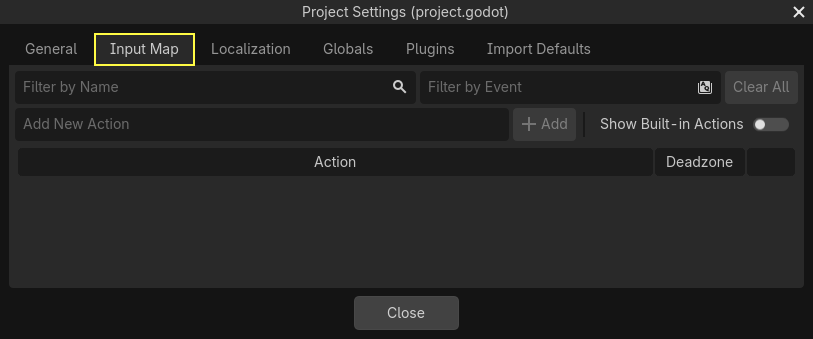
Open Project → Project Settings → Input Map. Add four actions and bind the keys shown. Action names keep your code readable and make gamepads easier to add later.
The real Input Map tab, opened from Project → Project Settings.
Wmove_forwardSmove_backAmove_leftDmove_right
Attach a new script named player.gd to the Player node. Replace its contents with:
player.gd
extends CharacterBody3D
@export var speed := 5.0func_physics_process(delta):
var input := Input.get_vector(
"move_left", "move_right",
"move_forward", "move_back"
)
var direction := Vector3(input.x, 0, input.y)
velocity.x = direction.x * speed
velocity.z = direction.z * speed
if not is_on_floor():
velocity.y -= 9.8 * delta
move_and_slide()
Input.get_vector() combines four named actions into one 2D direction. Pressing opposite keys cancels out.
08
Check
Exit ticket
Can you think like Godot?
Save pointDuplicate the project folder as SignalRun_01_Basics. Open the copy once and verify the room, player movement, camera, lighting, and collisions still work.
You now have the foundation
Remix your room.
Change the player mesh, add obstacles, adjust the speed, or turn the room into a tiny maze. Keep one change at a time, press Play, and observe.